Pulling images, running containers, mounting volumes, and serving a website with httpd.
“It works on my laptop” - Now make it work in a container

This continues from Getting Started with Docker. Docker should already be installed and running.
I ran docker run nginx once. It worked. I closed the laptop. The next day: “where’s my site?” Container was gone. I hadn’t realized docker run creates a new container each time and the old one stops when you close the session. Volumes and restart policies exist for a reason. Learn them before you need them.
Prerequisites
Git is needed to clone example web content later.
sudo apt-get update && sudo apt-get install git -y
git --version
Pull and Run an Image
Docker Hub has pre-built images for most common services. Start there. Don’t build from scratch unless you have to. “Your scientists were so preoccupied with whether they could, they didn’t stop to think if they should.” - Jurassic Park. Use existing images. Build custom only when necessary. And pin your tags.
“Pinning image tags matters.
:latestis a time bomb. Usehttpd:2.4and sleep better.” - Container registry hygiene
docker pull httpd:latest
Run it. Map port 8080 on your host to port 80 in the container:
docker run --name httpd -p 8080:80 -d httpd:latest
Flags explained:
-p 8080:80- Your browser hits localhost:8080, container sees port 80-d- Detached mode (runs in background, doesn’t block your terminal)--name httpd- Give it a name instead of a random ID. You’ll thank yourself when you have 15 containers running.
Verify the container is running:
docker ps

CONTAINER ID   IMAGE          COMMAND              CREATED          STATUS          PORTS                                   NAMES
88efc101f162   httpd:latest   "httpd-foreground"   22 seconds ago   Up 22 seconds   0.0.0.0:8080->80/tcp, :::8080->80/tcp   httpd
Add --rm to docker run to auto-remove the container when it stops. Prevents orphaned
containers from piling up: docker run --rm --name httpd -p 8080:80 -d httpd:latest.
This container has no custom content yet. Stop and remove it:
docker stop httpd && docker rm httpd
Confirm removal:
docker ps -a

CONTAINER ID   IMAGE     COMMAND   CREATED   STATUS    PORTS     NAMES
Serve a Website with a Volume Mount
Clone a sample web repository:
sudo git clone https://github.com/YOUR-USERNAME/forty-html5up /opt/forty-html5up
Run a new container with the cloned content mounted into Apache’s document root:
docker run --name httpd -p 8080:80 -v /opt/forty-html5up:/usr/local/apache2/htdocs:ro -d httpd:latest
The -v flag bind-mounts a host directory into the container. :ro makes it read-only inside
the container. Apache serves whatever lands in /usr/local/apache2/htdocs/.
If the container starts but the page doesn’t load, check docker logs httpd for Apache errors.
Common issue: file permissions on the mounted directory prevent Apache from reading the content.
Open http://<docker-host-ip>:8080 in a browser to verify.
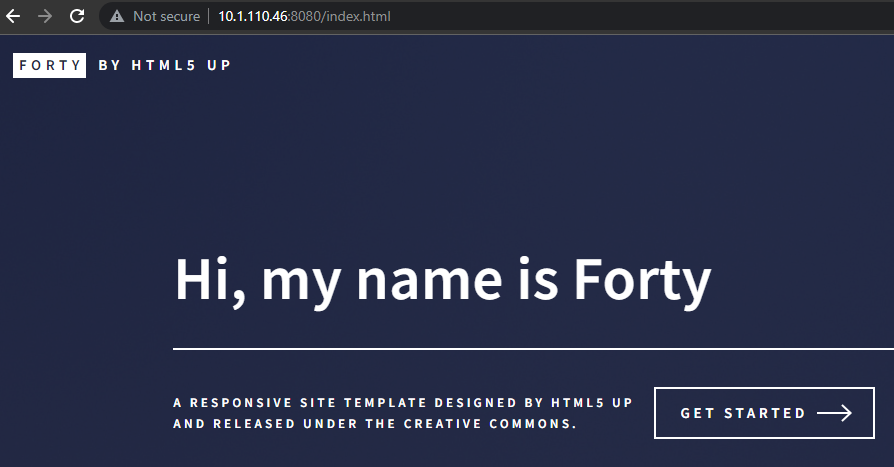
“Stateful containers are like houseplants: they need care, feeding, and you’ll be sad when they die.” - Container Orchestration Lesson
Bind mounts (-v /host/path:/container/path) are great for development, but they couple the
container to the host filesystem. For data you want Docker to manage (databases, app state),
use named volumes instead:
docker volume create my-data
docker run -d --name httpd -v my-data:/usr/local/apache2/htdocs httpd:latest
Named volumes survive container removal, are portable across hosts with docker volume
commands, and don’t depend on a specific host directory existing.
What’s Next
You can pull, run, and mount volumes. Next: how Docker image layering works and building custom images from running containers.
Related
- Getting Started with Docker - Installation
- Docker Image Layering - Build custom images, understand layers