Basic VM deployment on vSphere with Terraform. Single-file approach covering provider, data, resource, and output blocks.
“I’ll just click through the vSphere UI one more time…” - Said before automating everything
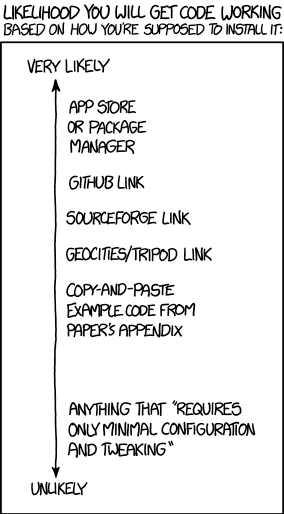 xkcd 1742: Will It Work - CC BY-NC 2.5
Problem
I deployed 6 VMs by clicking through the vSphere UI. Each one took 15 minutes. Half the time was waiting for pages to load. The other half was double-checking I didn’t fat-finger an IP address.
Terraform lets you define a VM once and deploy it repeatedly. No clicking. No waiting for web UIs. No typos. “Replicants are like any other machine.” - Blade Runner. Define the template once, deploy copies. Infrastructure as code.
“Infrastructure as code means you can diff, review, and roll back. Clicking through a UI leaves no audit trail.” - DevOps principle
Prerequisites
- A vSphere environment with a template VM to clone from
- Terraform installed
- Basic familiarity with vSphere concepts (datacenter, cluster, datastore, network)
Source: vsphere-vm-mk1
Provider docs: hashicorp/vsphere
Terraform Block
Pin the provider version. Terraform providers get updated. Sometimes those updates break your config. Pinning means your code keeps working even when the provider changes.
“Explicit version pinning is a contract. It says: ‘this config worked with this version.’ When it breaks, you know why.” - Terraform best practice
Always run terraform plan before apply. Read the output. I once destroyed 3 VMs because I didn’t notice the plan said “3 to destroy.” There’s no undo button in infrastructure.
terraform {
  required_providers {
    vsphere = {
      source  = "hashicorp/vsphere"
      version = "2.0.2"
    }
  }
}
Provider
Configure the connection to vCenter.
provider "vsphere" {
  user           = "tf_admin@vsphere.local"
  password       = "your-password-here"  # Use Vault or env vars - never hardcode!
  vsphere_server = "tpa-vmw-vc-01.foggyclouds.net"

  # If you have a self-signed cert
  allow_unverified_ssl = true
}
“I’ll just commit this and change the password later.” - Every leaked credential ever
Hardcoding passwords in provider blocks is not secure. Use environment variables
(TF_VAR_vsphere_password), a secrets engine like Vault, or .tfvars files that are
git-ignored.
Data Sources
Data sources look up existing vSphere objects by name and return their IDs for use in resource blocks.
data "vsphere_datacenter" "dc" {
  name = "Datacenter"
}

data "vsphere_datastore" "datastore" {
  name          = "tpa-lab-01-ds-01"
  datacenter_id = data.vsphere_datacenter.dc.id
}

data "vsphere_compute_cluster" "cluster" {
  name          = "lab"
  datacenter_id = data.vsphere_datacenter.dc.id
}

data "vsphere_network" "network" {
  name          = "pg-v110"
  datacenter_id = data.vsphere_datacenter.dc.id
}

data "vsphere_virtual_machine" "template" {
  name          = "templates/packer/ubuntu/linux-ubuntu-20"
  datacenter_id = data.vsphere_datacenter.dc.id
}
Resource
The VM resource defines hardware specs and clone settings.
Hardware:
resource "vsphere_virtual_machine" "vm" {
  name             = "test-vm-01"
  resource_pool_id = data.vsphere_compute_cluster.cluster.resource_pool_id
  datastore_id     = data.vsphere_datastore.datastore.id

  num_cpus = 2
  memory   = 2048
  guest_id = data.vsphere_virtual_machine.template.guest_id

  scsi_type = data.vsphere_virtual_machine.template.scsi_type

  network_interface {
    network_id   = data.vsphere_network.network.id
    adapter_type = data.vsphere_virtual_machine.template.network_interface_types[0]
  }

  disk {
    label            = "disk0"
    size             = data.vsphere_virtual_machine.template.disks.0.size
    eagerly_scrub    = data.vsphere_virtual_machine.template.disks.0.eagerly_scrub
    thin_provisioned = data.vsphere_virtual_machine.template.disks.0.thin_provisioned
  }
Clone + customization:
  clone {
    template_uuid = data.vsphere_virtual_machine.template.id

    customize {
      network_interface {
        ipv4_address = "10.1.110.185"
        ipv4_netmask = 24
      }

      ipv4_gateway    = "10.1.110.254"
      dns_server_list = ["10.1.110.11"]
      dns_suffix_list = ["foggyclouds.net"]

      linux_options {
        host_name = "test-vm-01"
        domain    = "foggyclouds.net"
      }
    }
  }
  lifecycle {
    ignore_changes = [
      annotation,
      clone[0].template_uuid,
      clone[0].customize[0].dns_server_list,
      clone[0].customize[0].network_interface[0]
    ]
  }
}
The lifecycle block prevents Terraform from trying to recreate the VM if the template
or customization settings change after initial deployment.
“State is the source of truth. Drift is the enemy. Lifecycle blocks tame the chaos.” - Terraform operators
The customize block requires VMware Tools (or open-vm-tools) installed in the template.
Without it, guest customization silently fails and the VM boots with default network settings.
Outputs
output "vm_ip_address" {
  value = vsphere_virtual_machine.vm.default_ip_address
}

output "vm_hostname" {
  value = vsphere_virtual_machine.vm.name
}
“State is truth. Lose your state file, lose your sanity.” - Terraform User, learned the hard way
“It’s a trap!” - Admiral Ackbar. Without Terraform state, you’re guessing. With it, you know exactly what exists. No surprises.
Terraform stores all managed resource state in terraform.tfstate. This file is critical -
losing it means Terraform doesn’t know what it manages. For solo projects, the local file is
fine. Once you’re collaborating or running CI, move to
remote state (S3, GCS,
Terraform Cloud) with locking enabled to prevent concurrent writes.
Run terraform fmt -recursive before committing. It auto-formats HCL to the canonical style.
Add it as a pre-commit hook so your repo stays consistently formatted:
terraform fmt -check -recursive # Exits non-zero if files need formatting
What’s Next
This works, but everything is hardcoded. mk2 introduces variables to make the deployment reusable.
Related
- Packer for golden images - Build VM templates with Packer, deploy them with Terraform